Saving and Loading Model Checkpoints
You can save a deep model at a selected checkpoint by opening the model's training history and then loading a saved checkpoint. These options are available in the Training dialog, shown below.
Training dialog

In the Training dialog you can visually evaluate the inference at different checkpoints and then load a selected checkpoint. You can then save a copy of the model at the loaded checkpoint.
 Saving Model Checkpoints
You can save model checkpoints for training with the Deep Learning Tool, Custom Deep Model Architectures, and the Segmentation Wizard. To save model checkpoints, you must check the Deep Learning preference 'Enable checkpoint cache' in the Preferences dialog, shown below.
Checkpoint cache preferences
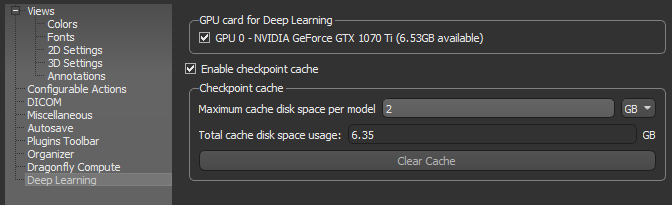
- Go to Preferences > Deep Learning to open the Checkpoint cache preferences.
- Check the Enable checkpoint cache option.
- Set a per model limit for the maximum cache disk space in KB, MB, GB, or TB.
You should select a per model disk space as per the type of model you usually train and the number of checkpoints you want to save. For example, each copy of a U-Net model with a depth level of 3 and an initial filter count of 64 takes approximately 15 MB, while each copy of a U-Net model with an input dimension of 3 slices, a depth level of 5, and an initial filter count of 64 takes approximately 250 MB.
Note Models will be saved at a checkpoint each time that it has a better score until the cache limit is reached. Afterwards, the model with the lowest score will be cleared so that the new checkpoint can be saved.
- Click OK to save your changes.
Loading Saved Model Checkpoints
In some cases, you may find that a model's inference at saved checkpoint is better for your purposes than the inference for the fully completed training. In this case, you can load and save the model at a selected checkpoint.
- Do the following to open the Training dialog:
- In the Deep Learning Tool, right-click a model in the Model list on the Model Overview panel and then choose Display Training History and select the required training session in the drop-down menu.
- In the Custom Deep Model Architecture dialogs, right-click a model in the Model list and then choose Display Training History and select the required training session in the drop-down menu.
- In the Segmentation Wizard, right-click a model on the Models tab and then choose Display Training History and select the required training session in the drop-down menu.
The Training dialog appears.
- Scroll through the graph to evaluate the inference at the saved checkpoints, which are marked in bold.
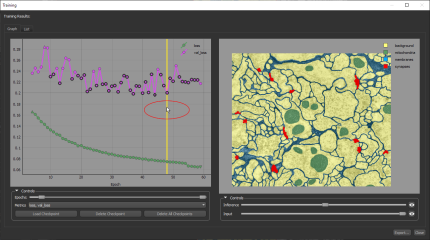
- Select the best checkpoint for your needs.
- Click the Load Checkpoint button.
The model is loaded at the selected checkpoint.
- Close the Training dialog.
- Generate a preview in the Deep Learning tool or a prediction in the Segmentation Wizard, recommended.
- In the Deep Learning Tool, choose an input in the Apply box and then click Preview (see Previewing Model Inference).
- In the Segmentation Wizard, select a frame or add a new frame and then click Predict.

